Return Items
Table of Contents Show
Returning Items to Inventory
A product that has been shipped can also be returned to inventory. The Returns feature allows you to record a product being returned. You will be able to enter a reason for the return and choose whether it should be added back to the inventory.
This feature is generally used when you have inventory control on, and the order is completed and shipments have gone out. If you are simply trying to update an order before shipping, then you can do that from the Edit Order Items page instead.
The inventory deduction and increases are determine by the Order Statuses configured. The default setting is to adjust inventory upon shipping that item, however, you can change this as needed.
Return Item(s)
From the View Order page, click the Returns tab in the top menu.
Within the Return Items section, you will see all the products in the order.
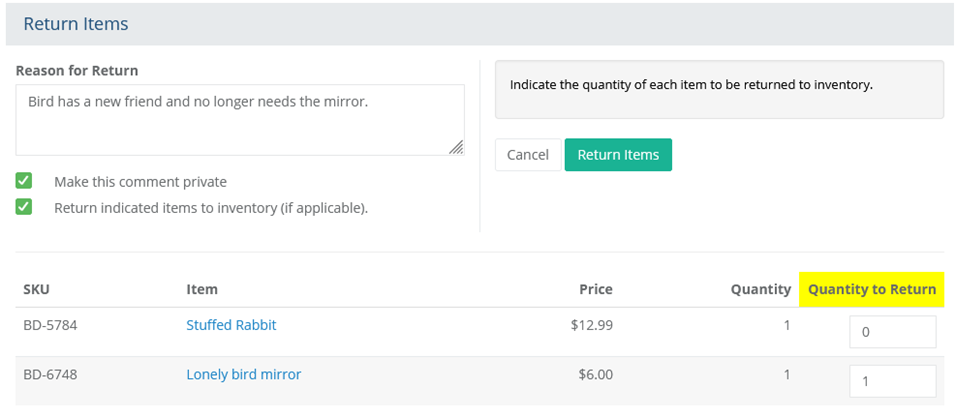
From this page, enter the Quantity to Return in the right column for each product that is being removed from the order.
In the Reason for Return field, enter a message and then uncheck the box "Make this comment private" if you want it to display on the customer's invoice.
By default, the "Return indicated items to inventory" is checked, but if the item is not going to be resold, uncheck the box so inventory levels are not replenished for the item.
Click the Return Items button to complete the transaction. A pop-up dialog will appear asking you to confirm.
NOTE: Inventory is adjusted and the item is removed from the order.
Under the Notes tab, the order will be updated to display the note you've added to the order.

A system note is added by the admin user who initiated the return. The optional "Reason for Return" note is also added.
Delete a Shipment
The delete button will only appear for shipments without any items.
From the Shipments page, click the DELETE button located below an empty shipment.
A browser warning prompt will appear for confirmation. If you want to delete the shipment, then click OK.
Additional Resources
Manage > Orders > Shipping - Add and edit shipments, and learn the shipping basics.
Configure > Store (Inventory) - Enable inventory management, stock control, and custom stock messages.
Manage > Orders > Order History - Automatic recorded events related to order processing.
Configure > Store > Order Statuses - configure events for inventory and order statuses