Edit Order Items
Table of Contents Show
Order Contents - Editing
After an order is placed, you can change it. The Edit Order Items feature gives you the ability to add or remove products from your order. Additionally, you can add a shipping or handling charge, adjust tax, and give a discount or a credit.
When you make changes through the edit order item pages, the order balance will be updated to show any amount due or refundable. Your customer can then return to the account page in your store and pay the remaining balance.
Edit an Order
From the View Order page, click the Items tab in the top menu.
Within the Order Contents section, you will see all the products, taxes, and any shipping charges. This view does not show the details of items per shipment. If an order has multiple shipments, you can manage items in the same way from the Shipments tab.
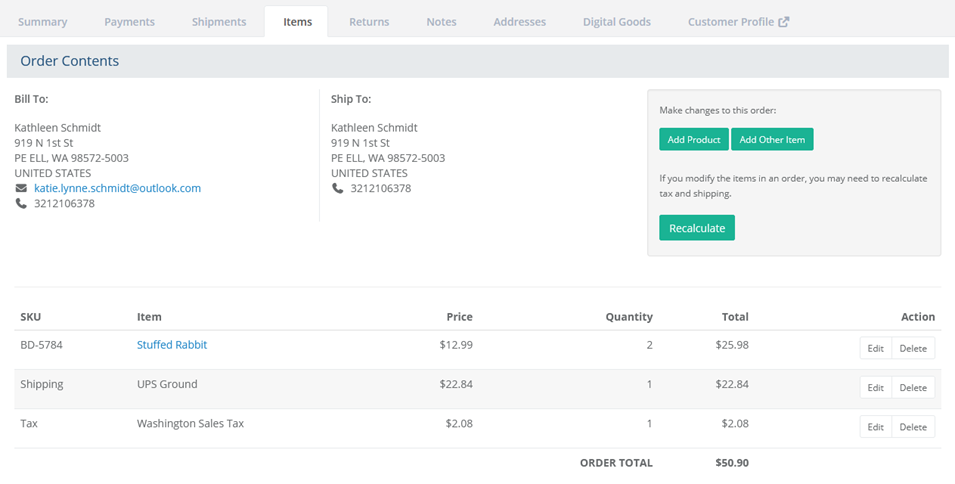
To edit any item in the order, click the Edit button in the far right Action column to open a pop-up dialog.
This will allow you to modify the price and quantity as shown in the example below.
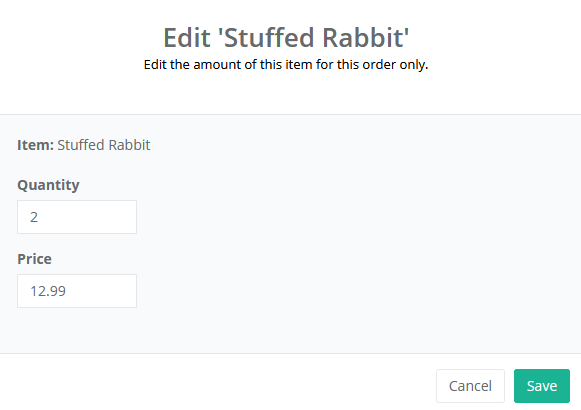
Make the necessary updates and click the Save button. If you wish to cancel the action, then click the CANCEL button.
If needed, click the green Recalculate button. (See next section for details)
The adjusted order balance will be reflected on the Order Summary page.
Recalculate Shipping and/or Taxes
After any change to an order, whether it is adding a new product, removing a product, adjusting the price, or any change that would affect the cost of shipping or a tax calculation, you can use the Recalculate feature to adjust the order amount.
Look for the green Recalculate button after modifying an order.
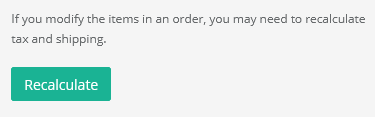
Click the button to open a pop-up dialog.
There will be options to recalculate taxes, shipping, or both.
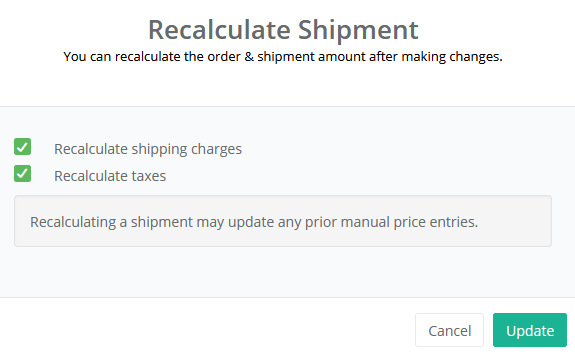
The defaults options are to recalculate both tax and shipping for the entire order. You can uncheck either box to remove it from the recalculation.
Click Update to recalculate.
The adjusted amounts will be shown. Any balance due or credit for the order will be reflected on the Order Summary page.
Add a Product to an Order
From the View Order page, click the Items tab in the top menu.
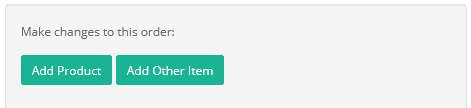
Click the Add Product button.
Using the search form, enter some criteria to find the product you want to add. You can search by Name, SKU, Category, Brand, or use the Advanced Search options.
Click the Search button to find your results.

Once you have found the product to add to the order, click the Add (+) icon.
From the next page, you can modify the price, quantity, and select which shipment to add the product to. If the product has options, you can select those as well.
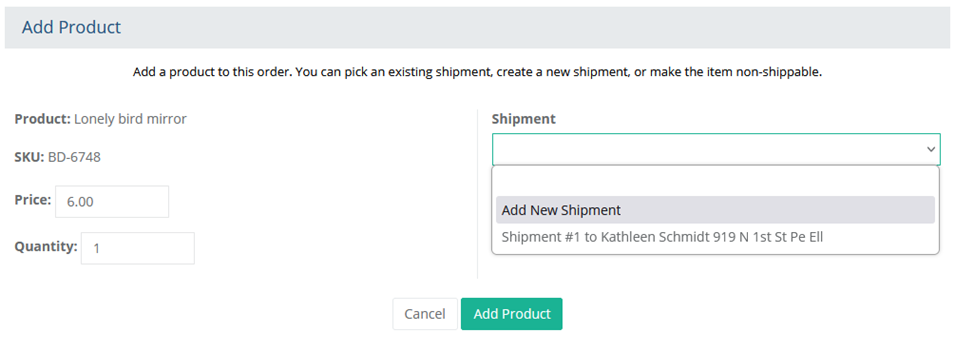
Make adjustments as needed, choose an existing shipment, or create a new shipment if needed.
(Optional) If creating a new Shipment, there will be options to select an existing shipping address (pulled from the user's address book), or you can create a new address by clicking the "New Address" link.
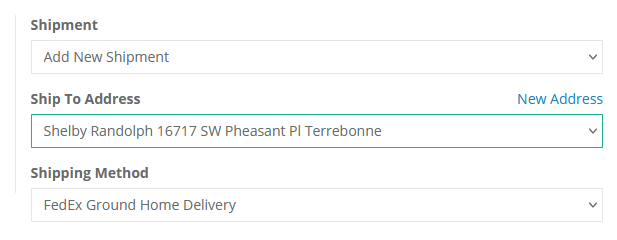
There will also be an option to select a Shipping Method.
When finished, click the Add Product button.
After the item is added, you can recalculate the shipping charges. Look for the green Recalculate button after modifying an order.
After recalculating shipping and/or taxes, the adjusted order balance will be reflected on the Order Summary page.
Add Other Item to an Order
From the View Order page, click the Items tab in the top menu.
Click the Add Other Item button.
A popup dialog will appear as shown in the example:
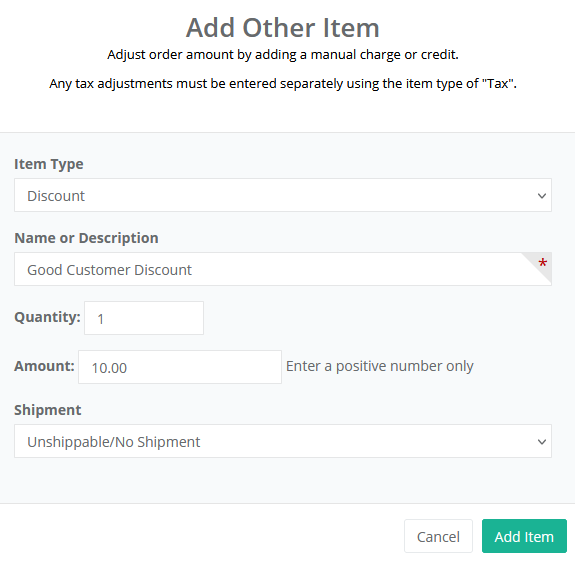
First, select the Item Type. This will determine if it's a credit or debit to the order.
Item Type - Select one of the item options available. (Shipping, Handling, Tax, Discount, Charge, or Credit)
This setting is used to determine how the order is modified and which reports are updated.
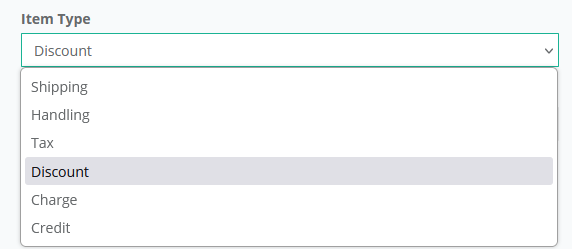
Then use the remaining fields to enter a Name or Description, Quantity, and Amount which will always be a positive value.
If the item is specific to shipment, you can select the shipment, otherwise, use the default "Unshippable/No shipment" option.
When finished click the Add Item button.
The adjusted order balance will be reflected on the Order Summary page.
Edit Order Addresses
After an order is placed, you will have the ability to change the address associated with the billing information, or any of the shipping addresses. The changes made here will only affect the order and not the customer's account, or profile.
Edit an Order Address
From the View Order page, click the Addresses tab in the top menu.
On the Addresses page you will see the billing address, and all shipping addresses for the order.
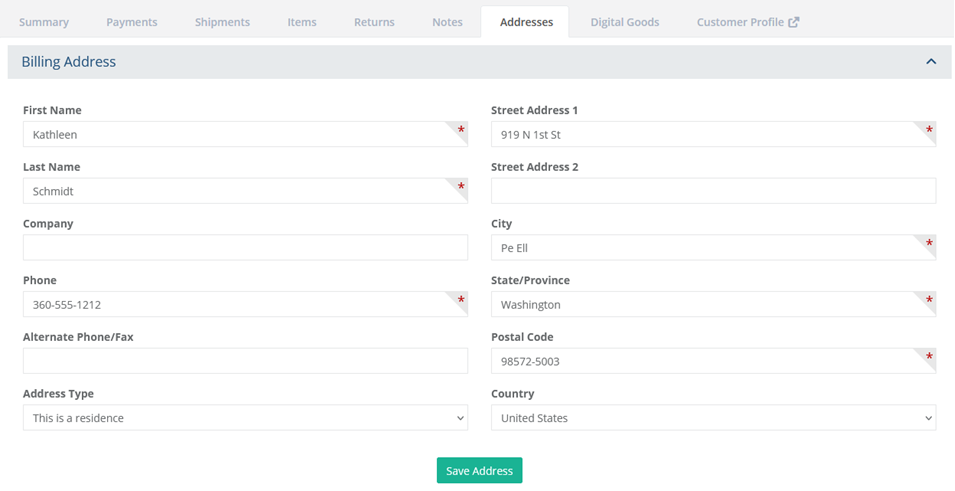
Edit the name or address as needed, and click the Save Address button when finished.
The order information will be changed and shown on the Order Summary page. The customer's profile or user account will not be changed.
Move Order
After an order is placed, you can move it to a different customer account. The Move Order feature gives you the ability to consolidate orders that have been placed using multiple guest accounts. Additionally, you can update the billing address or email address used for the order.
When you move an order, any digital goods, subscriptions, and/or groups are updated accordingly.
Move an Order to a Different Account
From the View Order page, for the order you want to move, find the Move Order button in the footer and click it to begin the process.

From the next page, you will be able to search for the user account that will be assigned to the order.
Using the form provided, search for an existing user account. If one is not created, you will need to do that first. Follow the instructions to Add User, then return to this page to continue.
Once you have the user in your search results, click the Move Order Here button in the far right Action column.
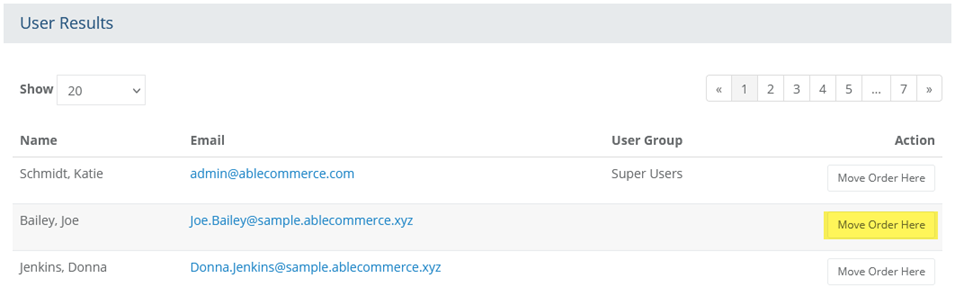
A pop-up form will display as shown in this example:
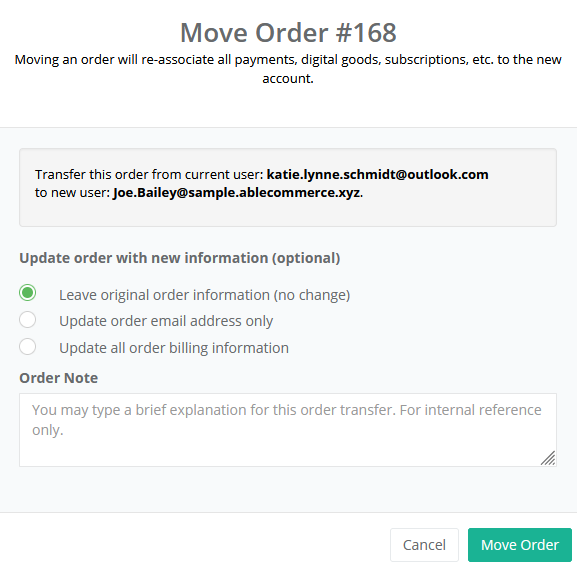
There are three options available. Select one to continue:
Leave original order information (no changes)
Update order email address only (The order's associated email address will be changed.)
Update all order billing information (This cannot be undone, so be sure you want to change the original billing address before checking this option.)
The Order Note field can be used to enter some information about the transfer. It will not be shown to the customer - it is for internal use only.
When finished, click the Move Order button to complete the order move. The order information will be updated per the option selected.
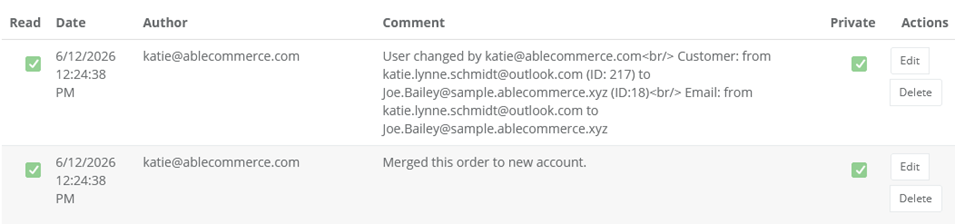
From the Notes tab, you can see a system note indicating the change that took place, as well as any custom order note you may have added in the last step.
NOTE: Shipping address(es) are not updated. You may need to change the shipping location(s) as needed.