Gift Certificates
Table of Contents Show
Gift Certificate Summary
To use gift certificates in AbleCommerce, you simply create a product with the gift certificate feature activated. When a product is created as a gift certificate, it can be purchased for the amount designated as the product price. Or you can create a variable price gift certificate, a product with preset minimum and maximum amounts, which allows the customer to enter their own card value.
A gift certificate, or gift card, can be physically shipped or delivered digitally. When the gift certificate is activated, a GUID serial number will be created which can be used like "cash" in your AbleCommerce store. As such, gift certificates are excluded from any coupons or discounts.
After a gift certificate product is purchased, you can modify and fulfill it from the order management area. You can also manage all gift certificate purchases from the Gift Certificates management page. Here you can search, sort, generate serial numbers, deactivate, edit and delete any gift certificate.
This document describes how to manage gift certificates from the Order Manager.
Fulfill an Order with a Gift Certificate
An order that contains a gift certificate product.
From the View Order page, click the Gift Certificates tab.
This will take you to the Gift Certificates page for the order. On this page, you can see the name of the product, the date it was created, the expiration, balance, and activation button.
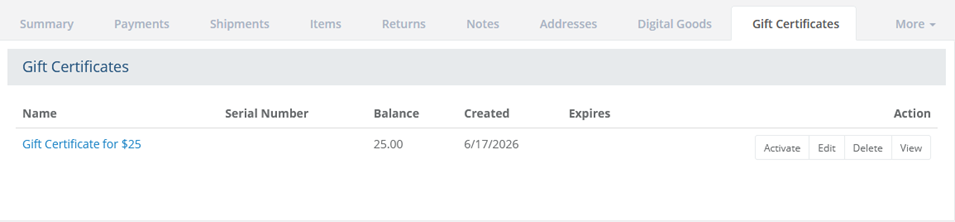
For an unpaid order, the gift certificates are not active. When the order is paid, a gift certificate will automatically activate. If you need to manually activate the gift certificate for some reason, click the Activate button to generate a serial number.
The page will be refreshed to include a serial number generated by the AbleCommerce system. The customer will now be able to view the serial number from their order.

You can cancel the gift certificate at any time by clicking the Deactivate button. This will disable the gift certificate, but it will still be shown.
Use the Edit button if you need to change the expiration date, name, balance, or generate a new serial number. (see following section)
You can click the Delete icon to remove the gift certificate from the order. This option will only appear if the gift certificate is deactivated.
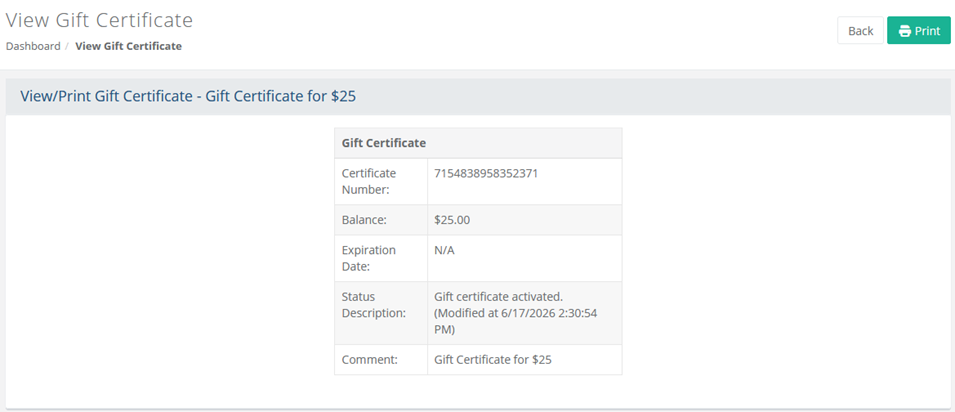
The last action icon will allow you to view the gift certificate details or print them.
Edit a Gift Certificate
At any time, you can change the gift certificate after it's been purchased. The changes made here will affect the gift certificate that was purchased, not the gift certificate product.
From the View Order page, click the Gift Certificates tab.
This will take you to the Gift Certificates page for the order.
Click the Edit button in the Action column to view the Edit Gift Certificate pop-up dialog.
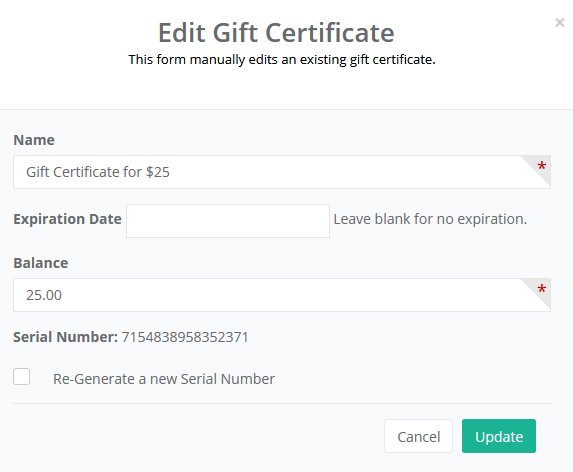
You can change the Name, which is how it appears for the customer on this particular order.
Add or change the Expiration Date. Typically, gift certificates do not have an expiration date. Leave blank for no expiration.
The Balance of the gift certificate. (a cash value)
If a Serial Number has already been created, then you can re-generate, or change it by clicking the checkbox.
When finished, click the Update button.
What does the customer see for Gift Certificates?
The customer can login to their account and view their order to see the gift certificate.
Active Gift Certificate
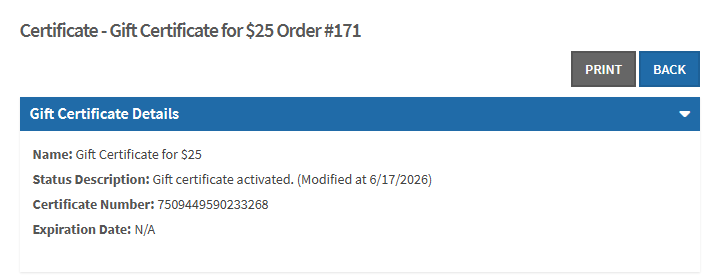
For an active gift certificate, the customer will see something
like this:

When a customer clicks on the linked gift certificate name, they
will see the GIFT CERTIFICATE
DETAILS. This page contains a serial key which
can be printed and mailed to a recipient.
IMPORTANT: Gift Certificates are the same as cash. We never recommend sending the gift certificate serial number to a customer via email. Instead, the customer should be instructed to login to their account, and view their order for this information.
Use a Gift Certificate
A gift certificate is only valid in the store it was created in. There is a payment method that automatically appears when the store has active gift certificates.
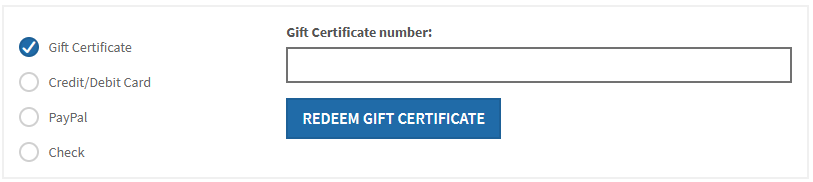
The customer wants to make a purchase in your store. On checkout, when asked to select the Payment Method, the customer would choose 'Gift Certificate'. The form refreshes with a field to enter the Gift Certificate number.
The customer should enter the Serial Number and click the button to REDEEM GIFT CERTIFICATE.
If the order is paid in full, they will see an order invoice page. (Any available balance will remain on the gift certificate until the expiration date.)
If the order is not entirely paid after entering the gift certificate number, the customer will see a message instructing them to choose another payment method to complete the order.
Additional Resources
Manage > Gift Certificates - View and edit all active or inactive gift certificates.
Products > Add Product > Gift Certificate - Setup a product as a gift certificate.
Configure > Store > Maintenance - Global setting for gift certificate expiration dates.