Subscription Fulfillment
Table of Contents Show
Subscription Fulfillment Summary
A subscription in AbleCommerce is a product that has a subscription plan created for it. A subscription plan can be used for products that have a requirement to collect an initial payment, and/or additional payments on a recurring billing plan you create. (e.g. Fruit-of-the-Month-Club)
When a subscription plan is created, you will be able to choose the name, customer group, and billing options like the payment frequency and total number of payments.
Subscription groups are given special treatment. They are not
considered like other groups in the system. They are special system
groups. Just like they are treated in a special way in some other
places, we also takes care of their special status. A user that
is assigned "only" to subscription group(s) is treated
just like a user that is assigned to no group at all. This is
because subscription groups are not actually 'groups' in actual
sense. They are system groups, used for a special purpose.
This is consistent with how subscription groups are treated at
other places. For example, subscription groups are not shown in
add/edit groups page. A Merchant does not assign/unassigned subscription
groups by manually editing the user groups. Instead subscription
group assignment/un-assignment is handled completely by the subscription
feature.
The automatic recurring billing option is only available for payment gateways that support it. Currently, that is Authorize.net CIM.
When a subscription product is purchased, it cannot be modified except for the expiration date. This is because the subscription may be part of a recurring billing plan that was previously initiated with the payment gateway.
From the Manage > Subscriptions area, you can view the details of all subscriptions and the products they are part of.
Fulfill an Order with a Subscription
The order must contain a product with a subscription plan.
From the View Order page, click the Subscriptions tab.
This will take you to the Subscriptions page for the order. From this page, you can see the name of the subscription plan, group (if used), an activation status, next payment due, and expiration date (if one is defined).

For an unpaid order, the subscriptions are not active. When the order is paid, the subscription will automatically activate. If you need to manually activate the subscription for some reason, click the Activate button to enable this subscription plan.
The page will be refreshed with a changed status of Active. If a Group is part of the subscription, the user will be assigned to the group.
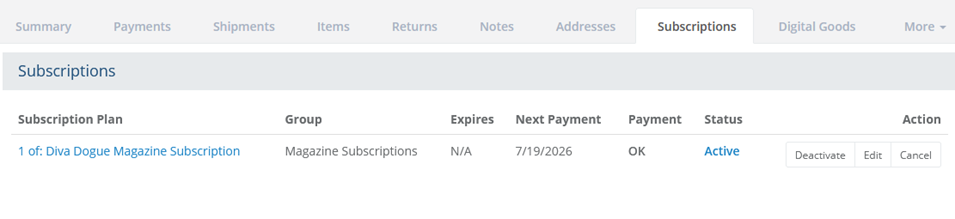
You can cancel the plan at any time by clicking the Deactivate button. This will disable the plan, but it will still be shown.
Use the Edit button if you need to change the subscription plan information. (see following section)
You can click the Cancel button to remove the subscription plan from the order.
CLASSIC SUBSCRIPTIONS: A subscription plan that does not use the automated recurring billing feature must be managed at the payment gateway level. This includes editing the payment amounts, dates, expiration, and cancelation. Once AbleCommerce sends the initial transaction information to the payment gateway, any changes to the billing plan must take place via your merchant service provider.
Edit Subscription Options
At any time, you can change the subscription after it's been purchased. The changes made here will affect the subscription plan that was purchased, not the subscription product.
From the View Order page, click the Subscriptions tab.
Click the Edit button in the Action column to view the Edit Subscription page as shown in this example:
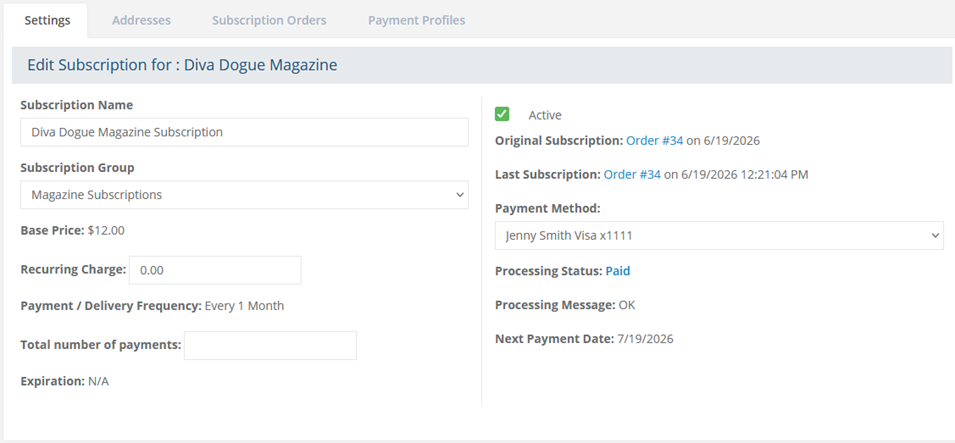
This will take you to the Edit Subscription page which has four sections for editing:
Settings - change or view the primary information on a subscription plan
Addresses - view or update the delivery address
Subscription Orders - view all orders created by the subscription plan
Payment Profiles - view or change the payment method profiles
Edit Subscription
From the Settings tab, you can change some, but not all, of the properties of the subscription order.
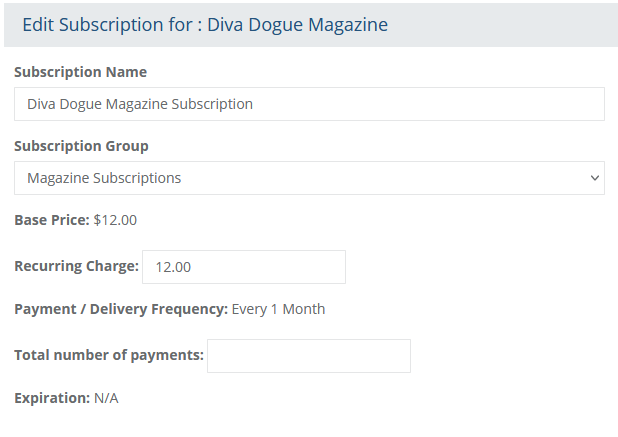
The Subscription Name can be changed. This will not change the product name - only the subscription name for this order.
If a group is assigned, you can update the Subscription Group to a different one. When a Subscription expires, is deactivated, or canceled, the user will automatically be removed for the group.
The Base Price is generated from the initial product purchase. This value cannot be changed once the subscription is purchased.
The Recurring Charge can be modified. This affects all future payment amounts.
The Payment / Delivery Frequency is determined by the subscription product settings and what the customer selected during purchase. This value cannot be changed once the subscription is purchased.
The Total number of payments is also determined from the subscription product and what the customer selected during purchase. This can be changed to end the subscription before it's expiration. A empty value here will allow the subscription to continue billing until canceled or deactivated. The initial value comes from the subscription product configuration.
Expiration is a calculated value from the Total number of payments option. This value cannot be changed. Instead, you can modify the total number of payments.
From the Settings tab, you can also view details regarding the orders and payments.
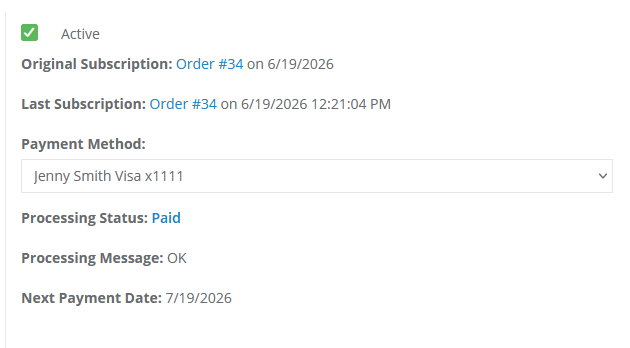
At the top of this section, there is a checkbox to indicate if the subscription is active. You may uncheck the box if required to deactivate the subscription.
The original order used to generate the subscription is shown with a link and date next to Original Subscription.
If the subscription has been running and generating new orders, a link and date are shown next to the Last Subscription order.
A payment profile is generated for the subscription. If the customer has created more than one payment profile, all will be listed under Payment Method and can be changed here or by the customer.
The Processing Status shows the last transaction for the last subscription order with either Paid, Failed, or Unpaid.
A Processing Message will be shown depending on the status of the last payment attempt.
Finally, the Next Payment Date is calculated from the payment delivery frequency.
Edit Subscription Addresses
From the Addresses tab, you can the customer's billing or shipping addresses.
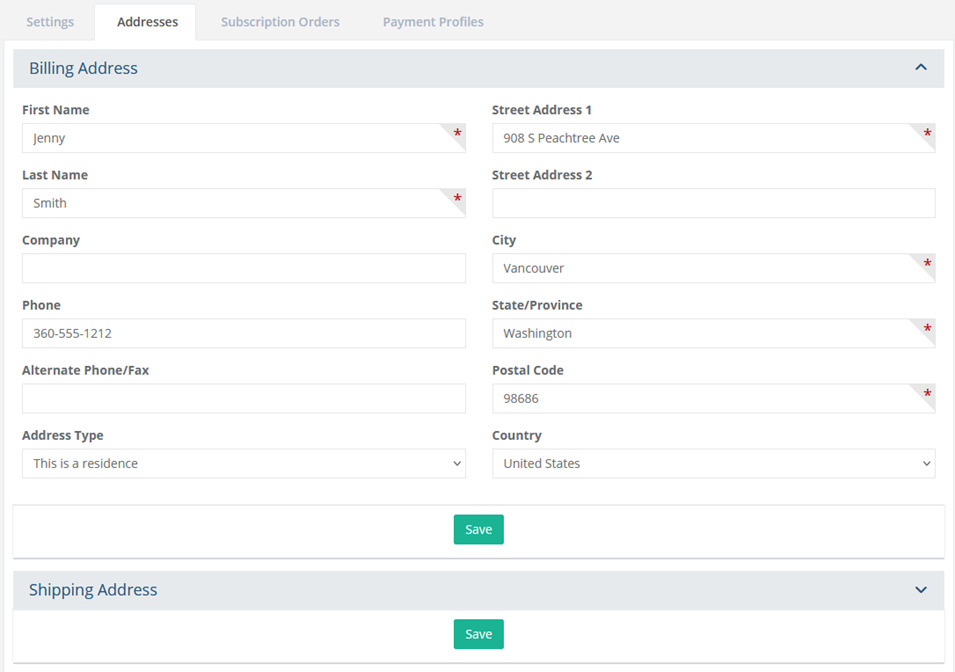
The addresses are pulled from the customer's user account. Expand the Shipping Address section to view all addresses available.
After making updates, click the Save button. All future subscription orders will use the updated information.
Subscription Orders
Subscription Payment Profiles
From the Payment Profiles tab, you can view all the stored payment profiles available for the user.

Payment details are provided, such as the name on card, method, last 4 digits, and expiration date. This information can only be changed by the customer.
In the last column, the subscription that is assigned to the payment profile is shown.
What does the customer see for Subscriptions?
After the order is placed, the customer can view the subscription
plan purchased from their account pages.
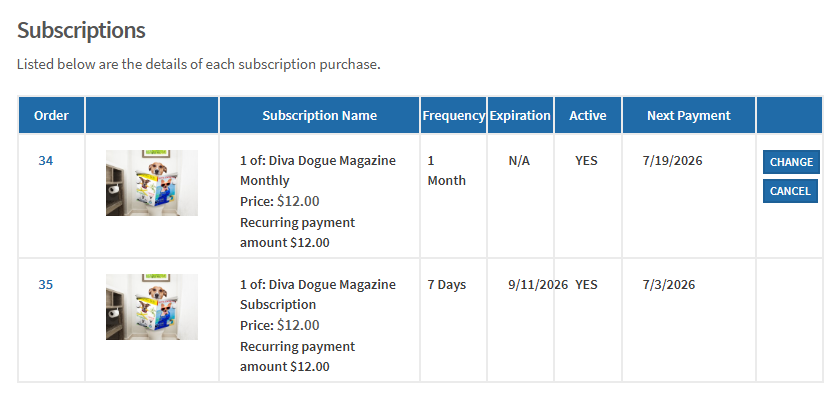
The Cancel and Change buttons are available to the customer when your Subscription Settings allow changes some number of days before the next order will be created. All of this can be configured by the merchant.
The Cancel action will prompt the user to confirm. When the subscription is cancelled, an email notification can be sent.
The Change button will expand the details of the subscription, and allow the customer to make changes to the billing, shipping, payment information, and frequency (if this is an option for the subscription).
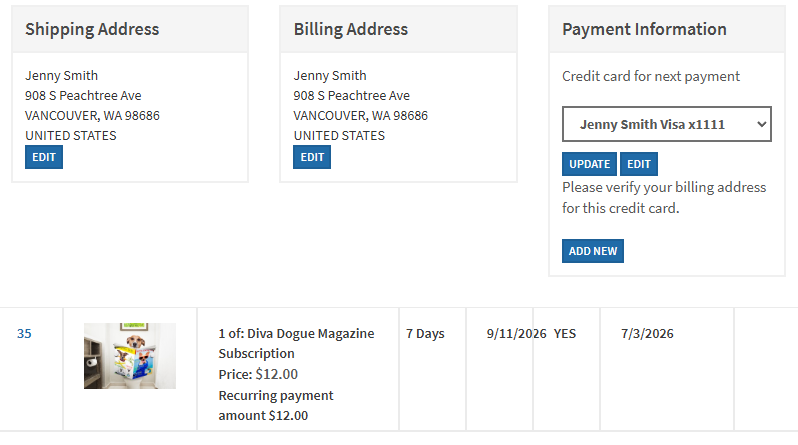
The EDIT button for Shipping Address and Billing Address will display a pop-up form where the customer can make any changes to the address, or add a new one. The information will be changed for the next order, as long as it has not been generated already, and all future orders.
If multiple payment methods are saved by the customer, they can select a different one and click the UPDATE button.
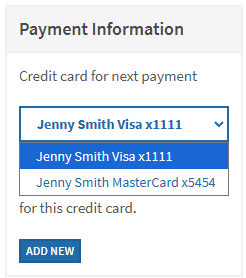
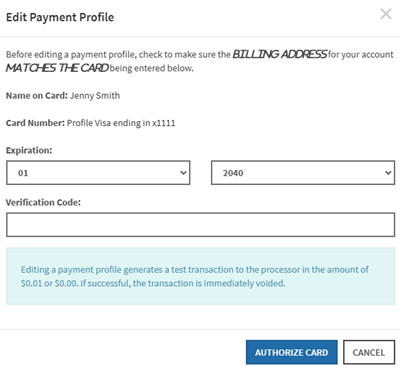
The customer can EDIT an existing payment profile. This will open a pop-up dialog with information to change the expiration and verification code on the same card. An authorize transaction will be performed to ensure the new card information is valid.
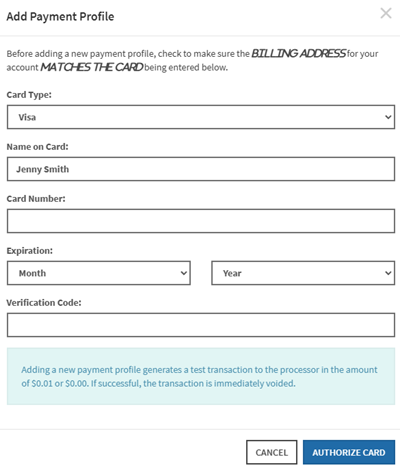
The ADD NEW button next to Payment Information will allow the customer to enter a different credit card. This will apply to the next order, as long as it has not been generated already, and all future orders. The credit card information will be stored securely with the payment gateway.
If multiple credit cards are stored, the customer will be able to select a different one and update or remove as needed.
Additional Resources
Manage > Subscriptions - View all subscription plans and the orders they belong to.
Catalog > Category > Product > Subscriptions = Setup and edit the pricing and frequency of a subscription product.
Configure > Store > Subscriptions - Configuration settings to enable automatic recurring orders