Order Manager
Table of Contents Show
Search Orders
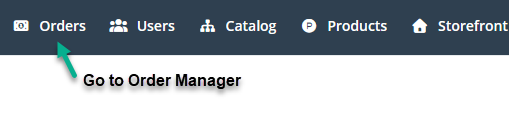
To find your orders, click on "Orders" link from the
top header in the merchant admin area.
The Order Manager page will give you the ability to search for
orders using a variety of different criteria. There are
basic search functions and advanced search capabilities.
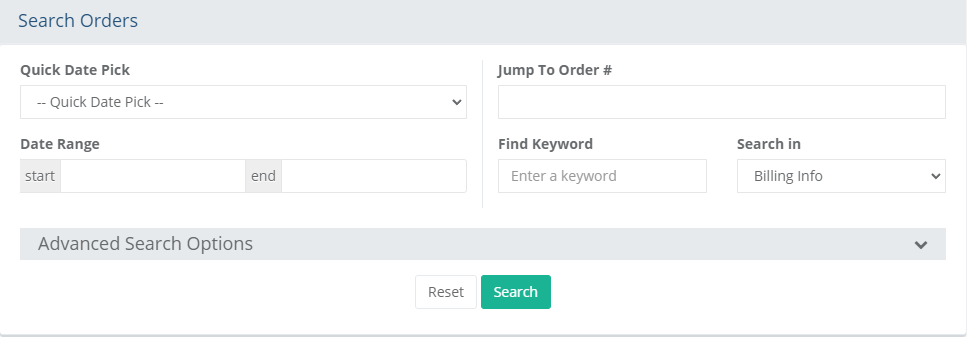
The order search form has several search options:
Date Quick Pick - These are a selection of date or range options that can be used to filter orders quickly. Some options include Today, Last 7 Days, Last Month, and many more.
Jump to Order # - Enter a single order number and click GO if you want to go directly to that order.
Date Range - Click in the fields to open the calendar picker. Choose a specific start and/or end date to show orders for the period selected.
Find Keyword - Enter a name, note, or partial information to search in billing, shipping, or order notes.
Expand the "Advanced Search Options" section to view
additional search options:
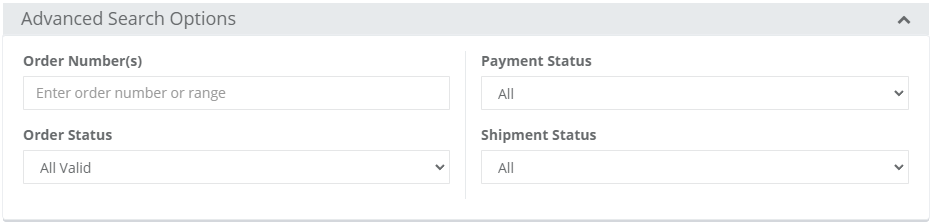
Order Number - Enter an order number, a range of order numbers separated by comma, or enter a number range like 1-10.
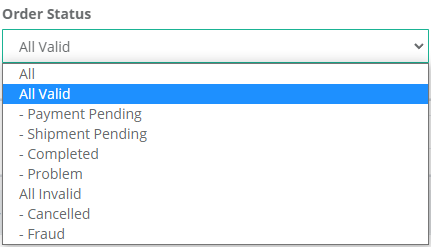
Order Status - Filter orders by status. By default, All Valid orders are shown. You can select from all orders statuses including filters for Valid and Invalid orders
Payment Status - Filter orders by Payment Status. (All, Paid, Unpaid, or Problem)
Shipment Status - Filter orders by Shipment Status. (All, Shipped, Unshipped, or Nonshippable)
Click the Search button to find orders with the criteria entered. You can use the Reset button to clear all values.
Order Search Results
The Order Manager search results will show all orders with the
most recent first. In the upper section, you can set the
search criteria to filter your results.
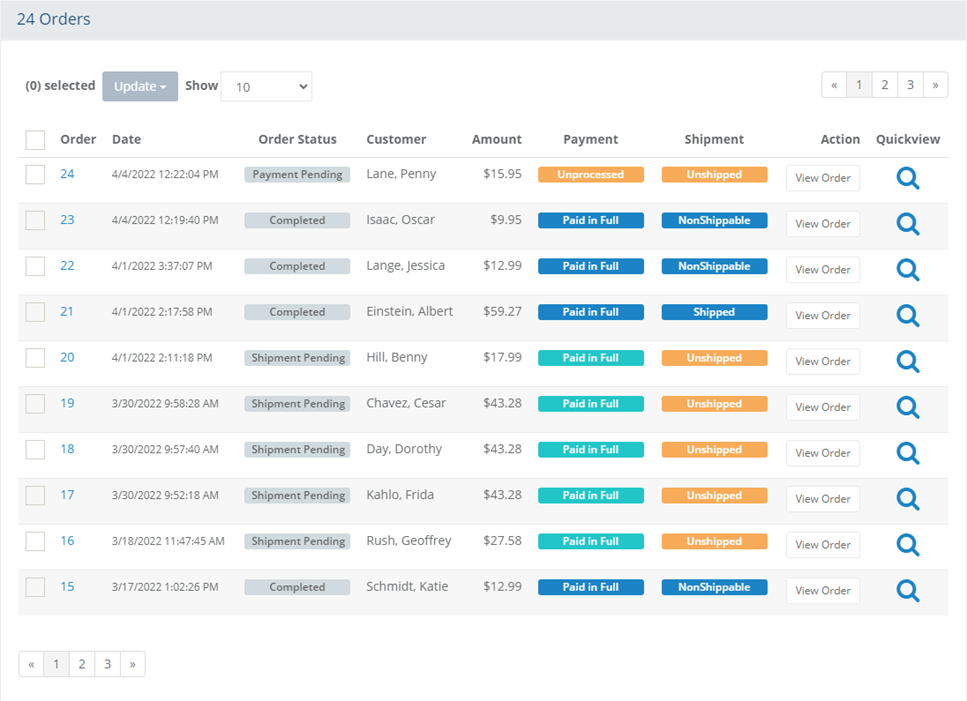
The matching orders for the search results are shown. Looking left
to right, the columns are described as follows:
Select - Check one or more orders to perform a batch change. Check the box at the top of the column to select all results.
Order - Shows the order number with a link to the order.
Date - The date and time the order was placed.
Status - This is the overall status of the order.
Customer - The last name, first name of the customer who placed the order.
Amount - The total order amount.
Payment - The payment status.
Shipment - The shipment status.
Action - A View Order button to take you directly to the order details page.
Details - Hold cursor over Preview icon to view the contents of the order, or click to view the order details, process payments, or ship.
Once some items are checked, the batch Update button becomes activated. There are several options to mass update the selected orders.
When orders are paid, then automated email, inventory adjustments, and activation of digital goods, subscriptions, and gift certificates could be triggered depending on your settings.
Not all payment processing can take place through a batch function. For instance, a refund would need to be processed through the individual order. You can, however, process individual transactions from this page.
Batch Update Orders
The Order Manager page will not only give you the ability to search for orders but you can also update multiple orders at once. The batch feature includes capabilities such as processing credit card authorizations for multiple orders, entering multiple shipment tracking numbers, and batch printing invoices and packing slips.
Before you can update multiple orders, you need to make your order selections.
From the Order Manager page, use search criteria to display the orders you want to update.
After the orders appear in your results, select them by ticking the checkbox next to each.
You can also tick the checkbox shown in the table heading, to select all of your results and exclude as needed.
In the example below, we have selected all orders with status 'Payment Pending'
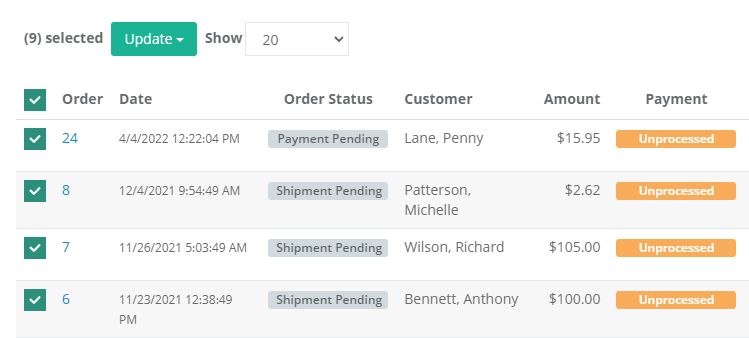
Now find the batch update selections as shown. Click the Update button to choose one of the batch options available.
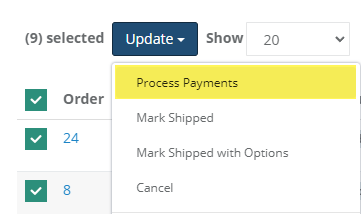
Choose a batch option from the list and click the UPDATE button. The selected orders will be changed or there will be a following page that you can print or take further action. This depends on which batch option was chosen.
Batch Update OptionsA batch option is some action you can take with multiple orders at once. The batch options available are described here. |
|
Batch Option |
Description |
Process Payment |
If you have setup a real-time payment gateway, and are authorizing transactions, this batch function will automatically capture the pending authorized payments. |
Mark Shipped |
Selected orders will be marked as shipped. As such, the shipment status will be updated. |
Mark Shipped with Options |
Selected orders will appear on the next page so you can enter a tracking number or different ship date. The shipments for each order will be shown and modified separately. |
Cancel |
Selected orders will be canceled. On the next page, you will need to enter a comment or reason to cancel an order. |
Print Invoices |
Next page displays all selected orders on a page using a printable stylesheet*. Each Invoice shows order information with pricing. |
Print Packing Slips |
Next page displays all selected orders on a page using a printable stylesheet*. Each Packing List shows Quantity, SKU, and Order Items. |
Print Pull Sheet |
Next page combines the selected orders to generate a single printable Pull Sheet. The pull sheet shows all items from all orders with quantity, SKU, and an area to check when pulled. |
Update status to <status name> |
Selected orders will have their order status updated to the option shown. Order statuses can be customized. |
Export selected |
Export the order data. See Data Transfer > Export> Orders for more information. |
Delete selected |
Delete the selected orders. This action cannot be undone. |
* A document using a printable style sheet will print with appropriate styles and page breaks. You must be using a modern browser to use this feature. Website headers, footers, and this message will not be printed.
Order Statuses
You can use the statuses to help you easily identify orders that need your attention. To customize this feature, see Order Statuses.
From the Order Manager page, you will see three types of statuses. Take a look at the example below.

The payment and shipment status columns use colored labels to help you easily find the orders that need attention. The order status indicates the "overall" progress of the order.
The tables below explain the types of statuses, how a status can be triggered, or what action a status represents.
* Inventory will never be de-stocked or restocked twice.