Digital Goods
Table of Contents Show
Digital Good Summary
A Digital Good is a file delivered electronically via a secure login to the customer's order page. In AbleCommerce, you will need to create a digital good and a product to complete the setup. From the Catalog > Digital Goods > Manage Digital Goods page, you will be able to create a new digital good and manage all your existing ones. Then assign one or more digital files to a product.
A digital good is delivered via the product, which is typically marked as "unshippable" and will not generate shipping rates. When you fulfill an order with a digital good, you will have the ability to activate a license agreement, readme link, fulfillment email, and a serial key.
Fulfillment of Digital Goods
When a product with a digital good(s) is purchased, the merchant can decide upon automatic or manual fulfillment. With the automatic method, you can change the digital good settings so that the file is available for immediate download when full payment is made. Additionally, a digital good can trigger it's own email notifications on activation and fulfillment and pull from a pre-defined list of serial keys.
During manual fulfillment, you will need to activate the download or generate a serial key from the order management area. This document will describe how to manually fulfill an order with a digital good.
Serial Keys for Digital Goods
For each digital good, you can either enter a license key individually for each download, or you can enable the Serial Key provider. The serial key provider is an automated system where you can pre-populate the serial keys used for digital good purchases. It is available from the Edit Digital Good setup page.
Activate a Digital Good
REQUIREMENTS: The order must contain a digital file product purchase.
This example is using a digital good with a manual activation mode setting. License agreement and Readme are setup. The automatic serial key is not enabled.
From the View Order page, click the Digital Goods tab.
This will take you to the Digital Goods page for the order. On this page, you can see the name of the digital good and a pending status which indicates the file is not yet available to the customer.
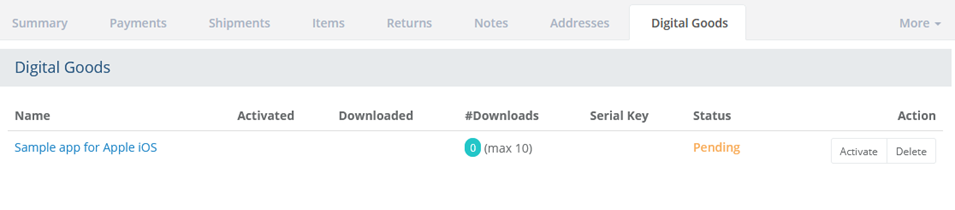
For an unpaid order, the digital goods are not active. If the order is paid, a digital good will automatically activate. If you need to manually activate the digital good for some reason, click the Activate button to make the digital good available for download. The page will be refreshed to include the activation date, number of downloads, and a valid status.
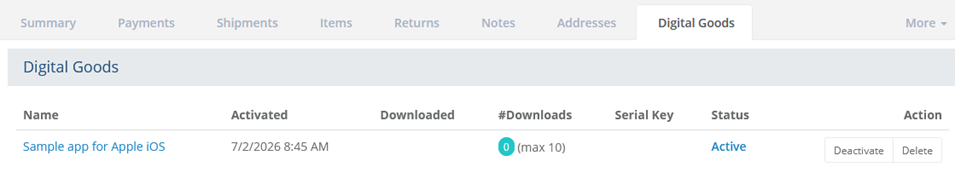
Name - the name of the digital good and a link to the configuration page. This is not the same as the product name.
Activated - the date and time the digital good was activated, either manually or automatically.
Downloaded - the number of times the customer downloaded the digital good file.
#Downloads - a setting for the digital good that allows merchants to limit the number of downloads. The number of downloads appears in the teal circle.
Serial Key - if this feature is enabled for the digital good, a serial key can be added manually or automatically.
Status - Shown as either Active or Pending, which determines if the customer can download or not.
Action - Use the buttons to manually activate, deactivate, or delete the digital good from the order.
NOTE: Activating a digital good may trigger an email being sent to the customer. This is configured from each digital goods configuration page.
Deactivate or Remove a Digital Good
From the View Order page, click the Digital Goods tab.
In the Action column, there will be options to Delete or Deactivate the digital good.
The Deactivate button will only appear if the digital good is active. When the digital good is inactive, it will appear for the customer, but they will not be able to download.
The Delete button will always be available. This action will remove the digital good from the order.
Adding a Digital Good to an Order
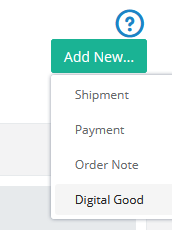
From the View Order page, click the green Add New button in the upper-right corner.
Select Digital Good from the drop-down menu.
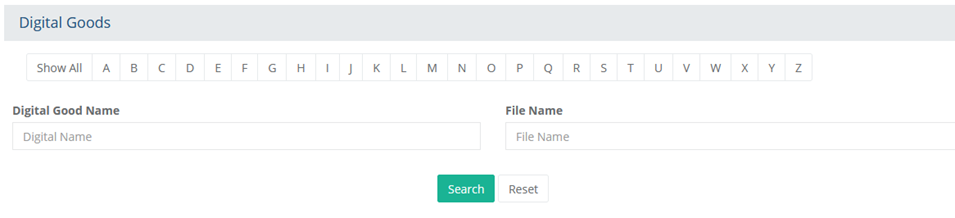
A search form will appear. Enter a full or partial digital good or file name. Click the Search button.
The filtered results appear at the bottom of the page.
Select one or more digital goods and click the Add Selected button.
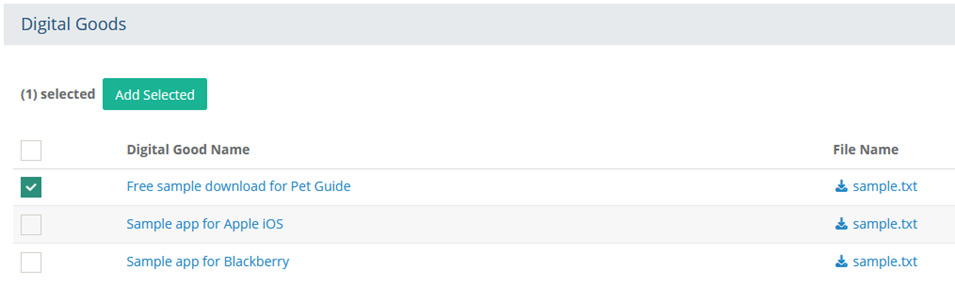
By default, these will not be automatically activated when adding through the order.
Using Digital Goods with Keys
Using license keys for digital goods requires that you enable and configure the feature from the digital goods configuration page. Keys can be added manually or automatically. To use automatic key fulfillment, you will need to configure the setting and add a source of keys for distribution.
From the View Order page, click the Digital Goods tab.
If the digital good is configured to use license keys, the Add Key button will be shown.
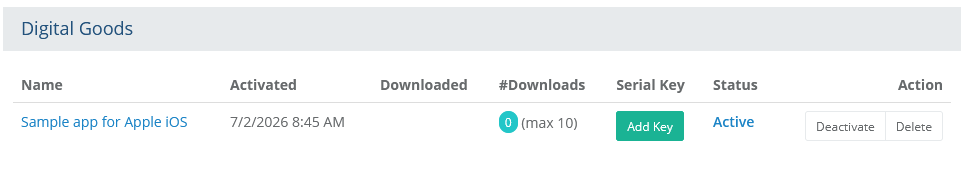
This will use one of the available serial keys, or you can enter the key data directly by clicking the Add Key button.
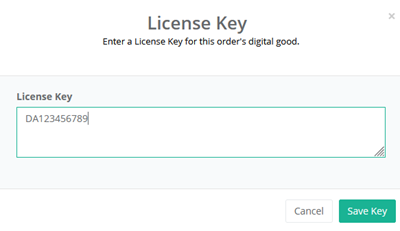
Using the form, enter a license key and click the Save Key button.
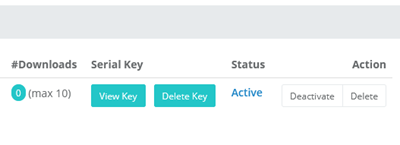
Once the license key has been added, you can click the View Key button to change it. Additionally, there is a Delete Key button if you need to remove an assigned key.
What does the customer see for Digital Goods?
The customer can login to their account and view their order to see the digital goods available.
Digital Good - Pending
For a download that is not yet available, the customer will
see something like this from their order page:

Digital Good - Download
For a download that is activated, and serial key assigned, the
customer will see something like this:

The customer can click on the linked Readme (optional) or License
agreement (optional). In the next column, there is the DOWNLOAD button. The customer
would click this to download the digital file.
The number of downloads available is shown in the Remaining column. A serial key (optional) may be displayed on the page as well.
If the digital good is setup to require a license agreement, then before the customer can download, they will read and accept the agreement terms before the download will commence.
Using Fulfillment Email with Digital Goods
The configuration settings for email notifications and digital goods are available from the Catalog > Manage > Digital Goods page. The Sample Data includes default email templates for digital good activation and fulfillment.
When you create a digital good, you will have the option to associate it with up to two email notifications.
There is an Activation Email which can be sent to the customer when the digital good is activated, available for download. The download activation occurs according to the activation mode (manual, immediately, on full payment).
There is a Fulfillment Email which can be used to distribute serial keys. The fulfillment of a digital good occurs according to the fulfillment mode (manual, automatic).
A digital good does not require it's own email, these are optional settings. By default, the standard order notification will be sent when any order is created. You can choose, however, to have additional email sent upon download activation and/or fulfillment of a license key.
TIP: Use the built-in Serial Key Provider and enter your digital goods' keys in advance. Turn on automatic fulfillment, and automatic activation on full payment, for a totally automated system of distributing electronic data.
Additional Resources
Manage Digital Goods - Create and manage digital goods, and the orders or products they are associated with.
Products with Digital Goods - Setup and edit the pricing and frequency of a subscription product.