Countries
Table of Contents Show
Manage Countries
Countries are used to determine what locations you are going to sell or ship to. When a country is added, it will be listed in all the address forms throughout AbleCommerce. Customers from those countries will be able to place orders in your store.
A few countries, like USA, Canada, and Mexico, have been pre-populated with states or provinces. You can add your own states or provinces for each country that you ship to. This can make it more convenient for your customers to select from a list rather than typing the information into a form.
Each country has a Country Code, this is called the ISO  code. From the Configure > Store > General settings
page, you can use ISO codes for countries that do not use postal
codes by entering a list of two letter ISO codes. Within the address
forms, the users from these countries will not be required to
enter a postal code. These countries come pre-populated with a
new installation.
code. From the Configure > Store > General settings
page, you can use ISO codes for countries that do not use postal
codes by entering a list of two letter ISO codes. Within the address
forms, the users from these countries will not be required to
enter a postal code. These countries come pre-populated with a
new installation.
A country will also have an Address Format option which can be changed to display the correct address formatting on your invoices and receipts. This feature allows you to easily comply with addressing standards.
The AbleCommerce Zones
feature can be used with the countries data to create distinct
regions for shipping and/or taxes.
In a sample data store, there are two zones. One for Alaska
and Hawaii and the second for the Contiguous US. A zone
can be defined with one or more countries, one or more states,
and by a range or single postal code. By creating zones,
you will be able to assign the shipping methods or services that
you want to offer only to customers in this location. They
can also be used for taxation purposes.
Using the menu, go to Configure > Regions > Countries to view a page similar to the one below.
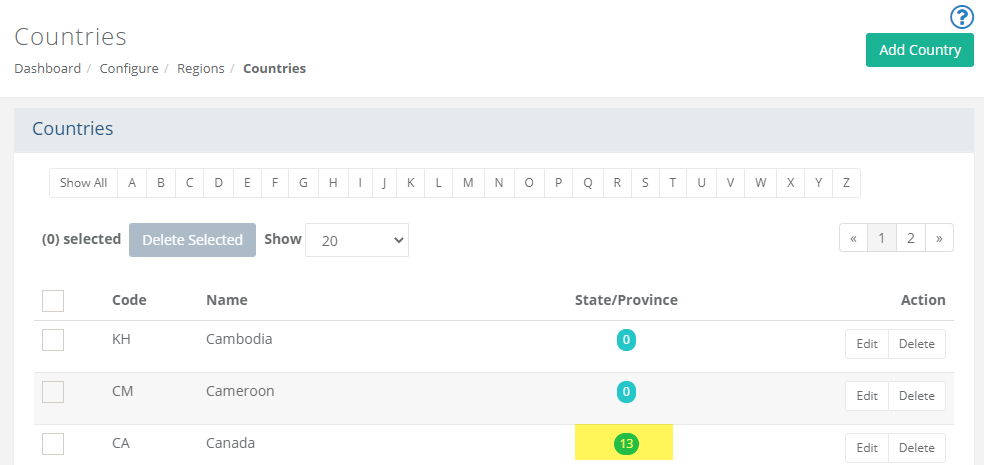
Quick Find: The alphabetical characters can be used to filter countries by names that begin with the selected character.
Paging is shown when the results exceed the number selected.
To change the number of results shown, use the select box next to Show. The default number of records is 20 per page.
The State/Province column indicator shows the number of records for each country. In the example above, Canada has 13 provinces. You can add, edit, or remove states and provinces by clicking the highlighted number value.
Removing Countries
By deleting countries, you will remove them from all address forms. This is required for countries that you do not ship or accept payments from. This action cannot be undone, but you can easily add a country back to the list.
To remove a single country, click the Delete button in the Action column.
To remove multiple countries, check the box in the first column next to the one(s) you wish to delete.
To remove all countries shown on the page, check the box at the top of the first column and this will select multiple countries at once.
Use the Delete Selected button to remove one or more countries.
Add or Edit a Country
You can add or change the name, ISO country code, or address format for each country.
From the upper-right corner, click the Add Country button to view a popup.
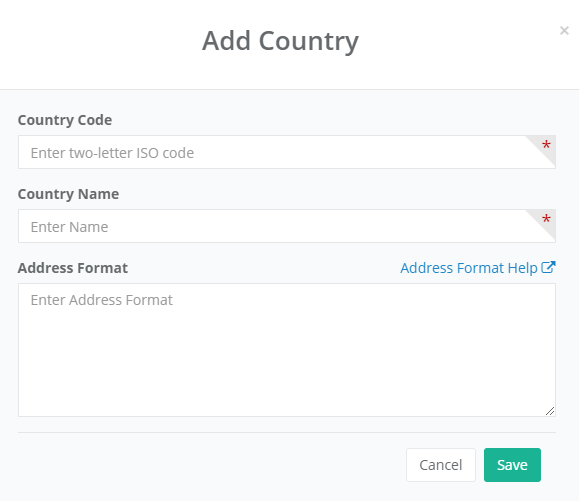
Enter a Country Code is a two-digit ISO code. This is only used when you add a new country.
Enter the full Name of the country as it will appear on all pages that display an address or address entry form.
The Address Format specifies the formatting rules for addresses from this country if different than the default (US) format.
See the Address Format section below for more information, or click the link directly above the form field.Click the SAVE button when finished.
The new record appears in the Countries list.
To change the country information, click the Edit button from the Action column. A pop-up form will appear where you can change the name or address format as needed.
Click the SAVE button when finished.
Add or Edit a State or Province
This will automatically update all address forms with a select list of states/provinces for the selected country. Otherwise, a blank field will be provided where the customer can manually enter the state or province for the selected country.
To add or edit a country's states or provinces, click the linked number in the States/Provinces column for the country you want to change.

This will bring you to the States/Provinces list for the selected country. In the example that follows, Canada has it's provinces added.
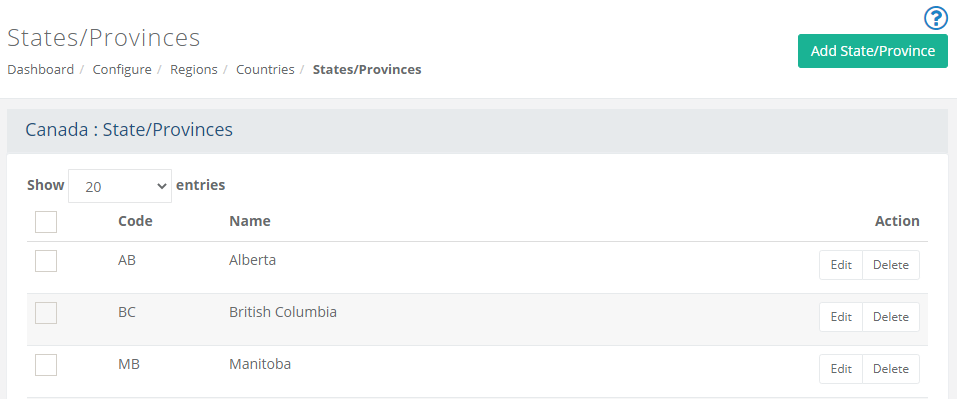
Click the Add State/Province button in the upper-right corner.
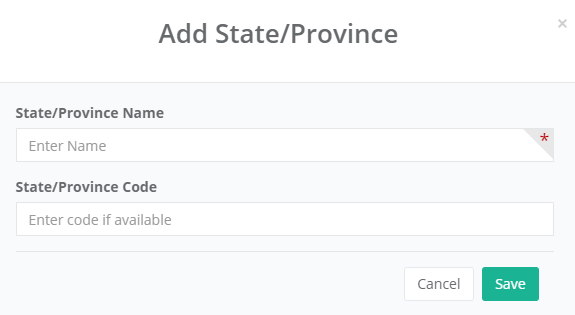
Enter the full Name for the state or province as it should appear in your store.
Enter an abbreviation of the Code used to represent the state or province. For example, "CA" is used for California. This is optional.
Click the Save button when finished.
Repeat for all remaining provinces. As each one is added, the list of provinces is updated in the list.
When finished, click the CANCEL button.
You can use the EDIT icon to change the name or code.
You can use the DELETE icon to remove the province from this country.
Address Formatting
When adding or updating a country, you may need to adjust the rules for address formatting for that locale. AbleCommerce provides you the ability to specify variables in the address format so that you can control how an address will be shown for that country. This will allow you to accommodate addressing regulations for the countries that you ship to.
Example address formats
United States (default)
[Name_U]
[Address1_U]
[Address2_U]
[City_U] [Province_U] [PostalCode_U]
Canada
[Name_U]
[Address1_U]
[Address2_U]
[City_U] [Province_U] [PostalCode_U]
[Country_U]
United Kingdom
[Name]
[Address1]
[Address2]
[City_U]
[PostalCode_U]
[Country_U]
If an address format is not provided for a country, a US style format will be applied.