AbleCommerce Client Tools
Version: AbleCommerce Client Tools (V4), version 5.6.0.0
Applies to: AbleCommerce 5.5, Asp.Net and CFMX versions
Download: AbleCommerce_ClientTools_V4.zip
Release Date: 9/5/2006
AbleCommerce Client Tools
AbleCommerce Client Tools is a separate download and installation of a client application that can be used with the latest versions of either AbleCommerce 5.5 Asp.Net or AbleCommerce 5.5 CFMX. The utility can be used for several purposes.
The components of the installer include:
-
Export data from an AbleCommerce 5.x store for importation to a 7.x store.
-
-
To export your store, see the instructions below.
-
To import your store to AbleCommerce 7, see DataPort Utility instructions.
-
Theoretically, it is possible to import data from 3.x and 4.x stores to AbleCommerce 7, however, it has not been tested.
-
Export data from an AbleCommerce 3.x, 4.x, or 5.x store for importation to a 5.x store.
-
Data Transfer utility for QuickBooks (from AbleCommerce to QuickBooks)
-
Data Transfer utility for UPS WorldShip (from AbleCommerce to Worldship, and Worldship to AbleCommerce)
System Requirements for Store Export Utility
-
Requires a datasource connection to the AbleCommerce database(s)
-
Microsoft .NET Framework Version 1.1
System Requirements for Data Transfer Utility
-
The ability to access an AbleCommerce 5.x store with an Admin username/password
-
Microsoft .NET Framework Version 1.1
-
Tested and supported for QuickBooks 2005 or QuickBooks 2006 (Standard and Pro editions only)
-
Tested and supported for UPS WorldShip (versions 4.0 through 7.0)
INSTRUCTIONS to INSTALL
-
Download the utility using the link above. After extracting the AbleCommerce_ClientTools.msi, double-click to install.
-
Once the client tools are installed, you can access the Export Utility by going to Windows Start > Programs > Able Solutions > AbleCommerce Client Tools > Store Export Utility
RUNNING THE STORE EXPORT WIZARD
For 3.x versions: You will need to create two (2) datasources if you are exporting from a 3.x installation. The first one should be to the "main" database and the second should be to the associated "security" database. During export, you will enter the "main" datasource first, and you will be prompted to select the second "security" datasource.
For multiple store exports: If you have multiple stores in each database, you will have an opportunity to select which stores you want to export. We recommend exporting one store at a time.
-
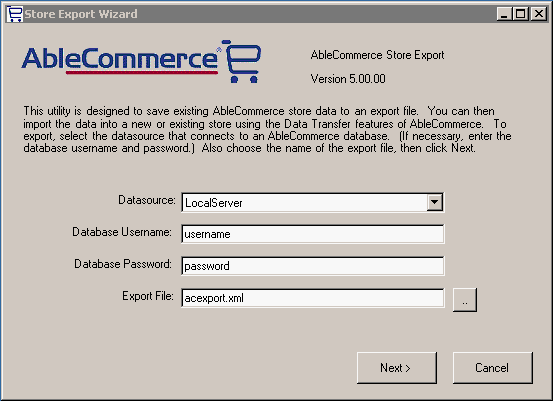
Select the datasource that contains the AbleCommerce storegroup data.
-
If the database is password protected, then enter the Username and Password.
-
The default location of the new Export XML file is c:\acexport.xml, change this if desired.
-
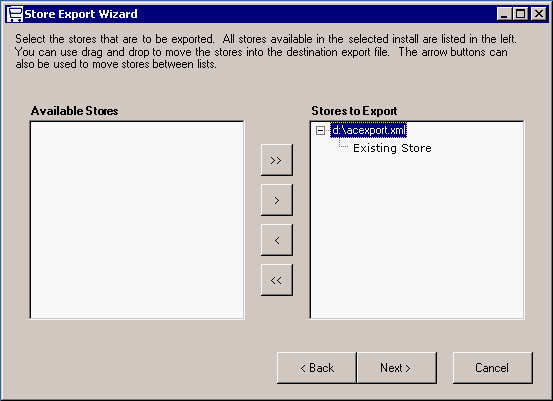
Click the Next > button to continue and a page similar to the following will be displayed.
-
Available stores will be displayed in the left-side frame, select one or more stores and click the ">" button to move them into the right-side frame.
-
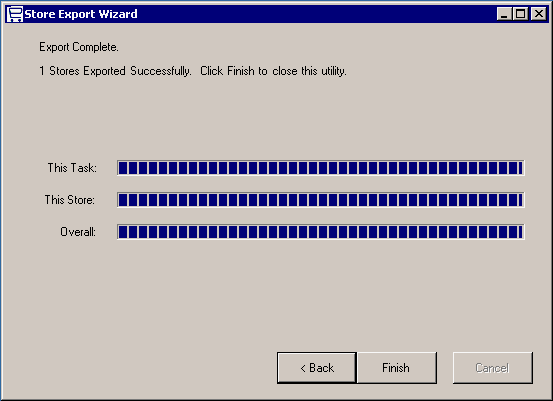
Click the Next > button to continue. A page like the one shown below will appear.
-
Click the Start button to begin. Wait for the progress meter to indicate completion and click Finish.
POTENTIAL ERRORS:
Using an AbleCommerce 5 CFMX - build 1357 database -
When exporting with latest version of the Client Tool, you may get an error similar to this:
Invalid column name PaymentStatus and PaymentStatusReason.
Add the following two columns to the PAYMENTS table and re-run the export.
paymentStatus (int)
paymentStatusReason (nvarchar)
Change Log
This section is a log of the changes that occur to the AbleCommerce Client Tools. The latest version and download are available in the section above. Each change is documented in the list below.
Further development on this utility has been discontinued.
AbleCommerce Client Tools - Data Export utility for AbleCommerce
|
Bug # |
Severity |
Component |
Brief Description |
|
3684 |
normal |
Export Utility /v3 |
imported products from AC3 are all set to active |
|
3724 |
normal |
Export Utility /v3 |
export utility using wrong extended price (AC3) |
|
3725 |
normal |
Export Utility /v3 |
export utility missing CategoryImgStub field (AC3) |
|
3622 |
normal |
Export Utility /v4 |
Wishlist_Product_ASSN not updated on import |
|
4344 |
normal |
PENDING |
When exporting 4.3 data, the ShipMatrix_ID column is not exported |
AbleCommerce Client Tools - Data Transfer utility for QuickBooks
|
Bug # |
Severity |
Component |
Brief Description |
|
2934 |
normal |
QuickBooks /v3 |
save export errors when invalid name or path used |
|
2935 |
normal |
QuickBooks /v3 |
Blank date range and order number hangs program |
|
2936 |
normal |
QuickBooks /v3 |
No Data Returned on valid search. |
|
3247 |
normal |
QuickBooks /v3 |
URL of http://asdf/ generates unhandled exception. |
|
3325 |
normal |
QuickBooks /v3 |
Error on download of orders. (The path is not of a legal form). |
|
3329 |
normal |
QuickBooks /v3 |
Order Number range not working |
|
3367 |
normal |
QuickBooks /v3 |
had to enter a date range 1 day in the future |
|
3400 |
normal |
QuickBooks /v3 |
on "finish" return to menu |
|
3401 |
normal |
QuickBooks /v3 |
character encoding |
|
3402 |
normal |
QuickBooks /v3 |
products without sku not imported |
|
3413 |
normal |
QuickBooks /v3 |
data missing from transfer |
|
n/a |
trivial |
QuickBooks /v4 |
minor changes to the error checking / error messages |
AbleCommerce Client Tools - Data Transfer utility for UPS WorldShip
|
Bug # |
Severity |
Component |
Brief Description |
|
3154 |
normal |
UPS WorldShip /v3 |
pulls Abandoned Carts/Failed Transactions into Worldship data file. |
|
3246 |
normal |
UPS WorldShip /v3 |
URL of http://asdf/ generates unhandled exception. |
|
3265 |
normal |
UPS WorldShip /v3 |
'Address 2' and 'Phone Number' not included in export |
|
3314 |
normal |
UPS WorldShip /v3 |
UPS WorldShip Version 7.0 |
|
3364 |
normal |
UPS WorldShip /v3 |
WorldShip QVN Failure Email not staying populated |
|
|
|
|
|