AvaTax - Tax On Demand Service
Applies to: AbleCommerce 7.0.3 and higher
Date: 11/18/2011
Download: AvaTax Connector (needed for versions 7.03 through 7.0.6)
Implementation Guide: AbleCommerce AvaTax Connector.pdf
Whether you’re a large, multichannel retailer, a boutique vendor, or a home based business with a specialty shopping website, you need to accurately calculate sales tax instantly, avoiding any delay to the customer at the time of purchase. Avalara provides robust e-commerce sales tax software solutions that integrate seamlessly with your e-commerce shopping systems and provide instant, accurate sales tax calculations at checkout. In addition, Avalara can provide all the back end compliance functions such as reporting, returns and remittance for your business.
The AvaTax connector will provide tax calculation services through AbleCommerce using Avalara's AvaTax service. It is a full featured integration that includes tax calculation and address validation. It is compatible with all major features of the AbleCommerce shopping cart, for example quantity discounts, shipping charges, and multiple origin/destination addresses.
The AvaTax service must be purchased separately from Avalara.com in order to make use of this feature.
Download Latest Files
-
The AvaTax Connector has the latest files for versions 7.0.3 through 7.0.6.
-
If you are running AbleCommerce 7.0.7, do not install the files from the download because your installation already includes all the latest updates.
Instructions:
-
Extract the files to a temporary location.
-
Find the folder for the version of AbleCommerce you are using.
-
Copy all the files within that folder to your AbleCommerce installation.
\ConLib\OnePageCheckout.ascx.cs
\Bin\CommerceBuilder.AvaTax.dll
\Bin\Avalara.AvaTax.Adapter.dll
\Admin\Orders\CancelOrder.aspx.cs
\Admin\Shipping\Warehouses\EditWarehouse.aspx.cs
\Admin\Shipping\Warehouses\AddWarehouse.aspx.cs
\Admin\Taxes\Providers\AvaTax\Default.aspx
\Admin\Taxes\Providers\AvaTax\Default.aspx.cs -
Make sure to recycle the application, or restart the web service.
To enable AvaTax Service within AbleCommerce
After installation of the AvaTax connector, or for versions that include built-in support, follow the instructions below to enable automated taxation. It is assumed that you have been provided account setup information by Avalara.
-
Login to your Merchant Menu for AbleCommerce.
-
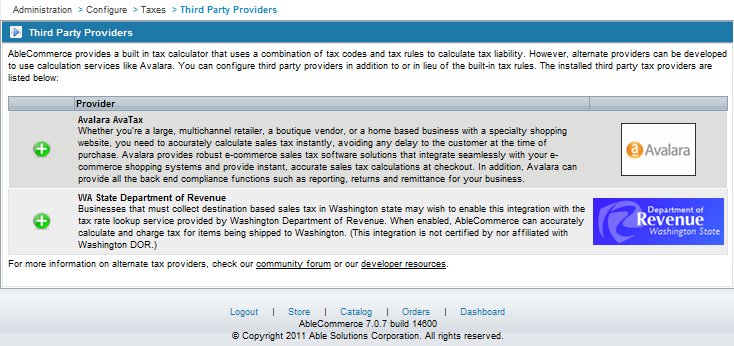
Go to the Configure > Taxes > Third-Party Providers menu.
-
Click the green plus icon to access the AvaTax Configuration Menu.
-
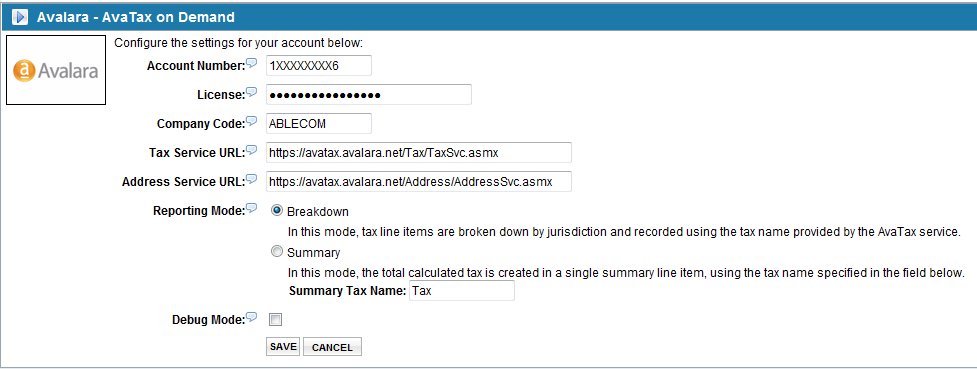
Using the information provided to you by Avalara, enter your Account Number and License into the first two fields provided.
-
The Company Code can be defined within your AvaTax Dashboard. The default value will be used if left blank.
-
Your Tax Service and Address Service URLs will need to be adjusted for live service or testing.
Live Tax and Address Service URLs:
https://avatax.avalara.net/Tax/TaxSvc.asmx
https://avatax.avalara.net/Address/AddressSvc.asmx
Testing Tax and Address Service URLs:
https://development.avalara.net/Tax/TaxSvc.asmx
https://development.avalara.net/Address/AddressSvc.asmx
-
Select the Reporting Mode as desired
-
Debug Mode can be enabled when troubleshooting any problems or errors. The output file resides in the app_data\logs folder.
Avalara will provide some assistance in determining the best method for configuring your taxes within the AvaTax console and AbleCommerce store.
You can calculate tax based on a product SKU match, or the product's tax code setting. This is covered in the implementation guide AbleCommerce AvaTax Connector.pdf
Additional information
Enhancements made at version 7.0.6:
-
Eliminate Full Trust requirements for AvaTax Connector
-
Incorporate AvaTax as official part of deployable build
Issues fixed between 7.0.5 and 7.0.6:
-
AvaTax Connector fails with multiple shipping destinations
-
AvaTax Connector doubles order level coupons
-
Avalara AvaTax Company Code is lost
-
Non-shippable items do not get taxed with AvaTax
-
Google Checkout merchant tax calculation broken for anonymous users
-
Taxes are not calculated for orders with no shippable items