Featured Categories
Table of Contents Show
Managing Featured Categories
The Featured Categories page allows you to view categories that are featured in your store. These featured categories can be displayed by inserting the Featured Categories widget into a page of your store.
To access this feature, go to Manage > Featured Categories using the admin menu. A page similar to the one shown below will appear.
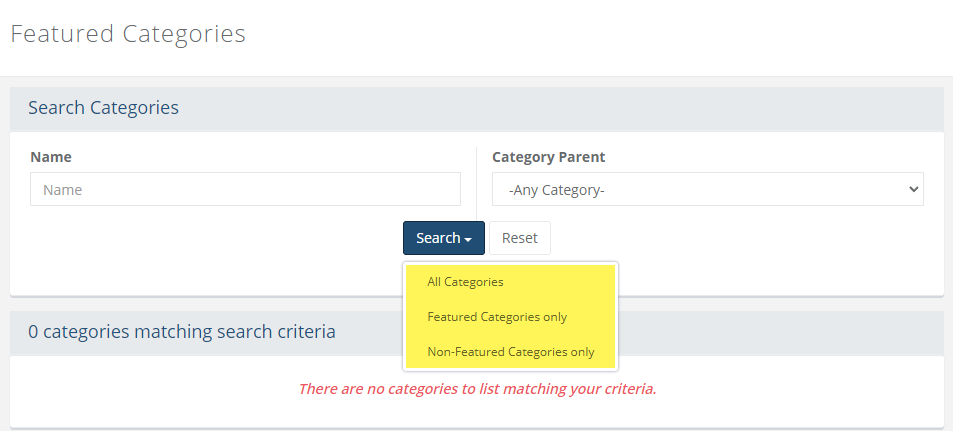
From this page, you can use the search form to find categories and make them featured. The search button includes options to find categories that are already marked as featured or only the ones that are not.
Finding and Adding Featured Categories
After creating new categories, you can make them featured in the store. There are a few methods available:
Search and Assign - to make several categories featured at once, find the Featured Categories page from the Marketing menu.
Batch Edit - to change or update several categories, go to the Catalog > Batch Edit > Categories page and follow the instructions there.
Edit a Single Category - go to the category editing page, which are available from the Catalog > Categories page. Select a category to edit and check the box next to "Include category in Featured Listing".
Search and Assign Featured Categories
From the menu, go to the Marketing > Featured Category page.
This will bring you to a Search Category form as shown in the image below.
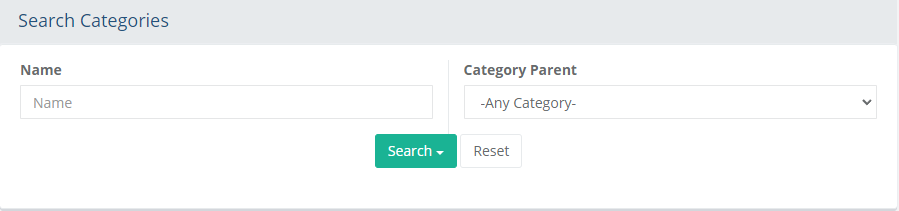
Using the search form(s) provided, find the categories that you would like to be featured by search for the name or selecting a parent category.
After entering the search criteria, press the Search button which will drop-down to provide 3 additional filters:
- All Categories: results include all categories regardless of their featured setting.
- Featured Categories only: results include only the categories that are already set as featured.
- Non-Featured Categories only: results include only categories that are not yet set as featured.
By default, the search results show any categories that are currently featured.You can use the buttons from the Action column to individually Assign or Remove products, or..
Check the box next to one or more categories, or check the box at the top of the first column to quickly select all categories in the search results.
This will activate the Update button, which will drop-down to provide 2 options: either Change to Featured Categories or Unassign Featured Categories the selected categories.
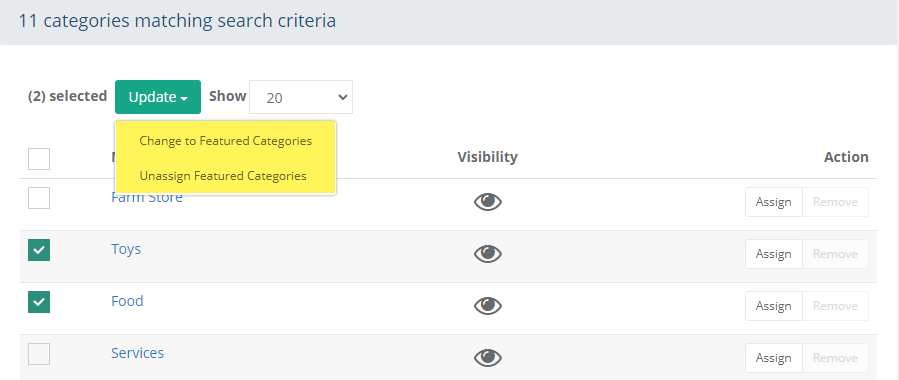
The update will take place immediately after selection.
Edit a Category's Featured Setting
You can make several categories featured from the Featured Categories page, and you also have the option to make a category featured from the category editing page.
Find a category from the Catalog > Categories page.
Edit the category to view a page similar to the one shown below.
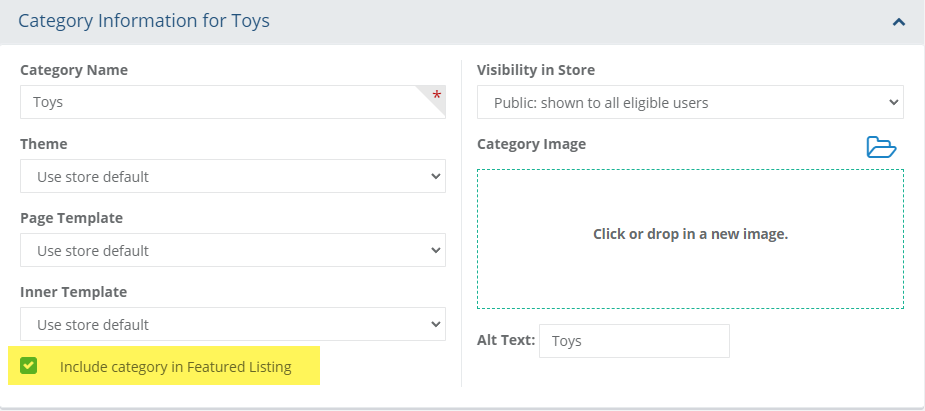
Check the box next to "Include category in Featured Listing" and make the category featured, or...
Uncheck the box to remove the category from the featured listing.
When finished, click the Save or Save and Close button.
Featured Category Widget in the Storefront
When a category is featured, it will automatically appear as
part of the Featured Category
widget. First, the widget must be added to a page in the
store.
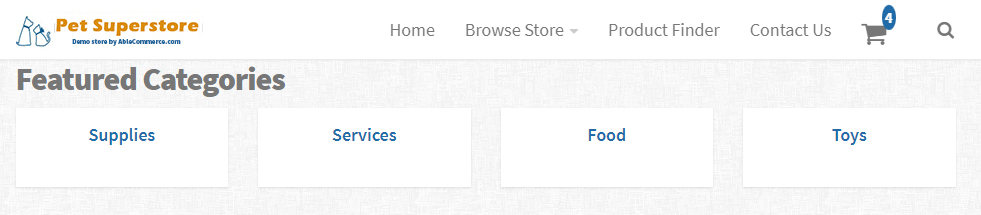
The featured category will automatically rotate on the page so you can add as many featured categories as you like.
Adding and Modifying the Widget
Turn ON editing mode to make changes to the storefront page.
Locate the Featured Category widget from the General section.
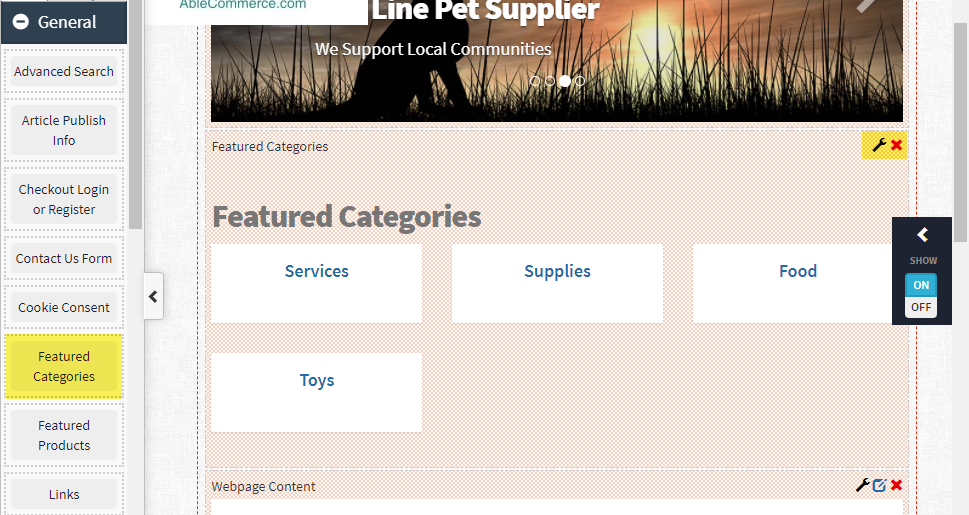
Drag and drop the widget onto the desired page.
Edit the widget to see some display options available, including number of categories to show (Size), the maximum number of columns, and the caption shown as a heading.
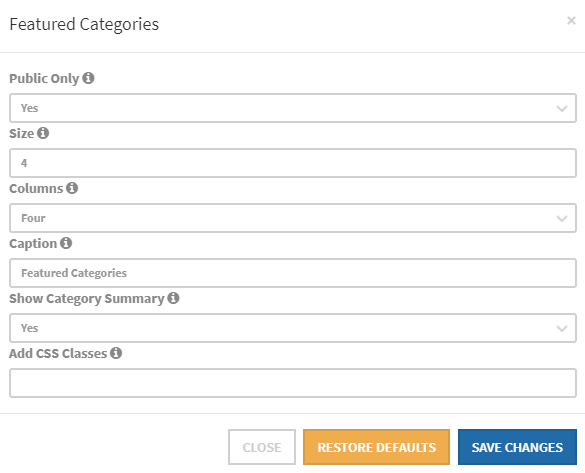
Save changes when finished.
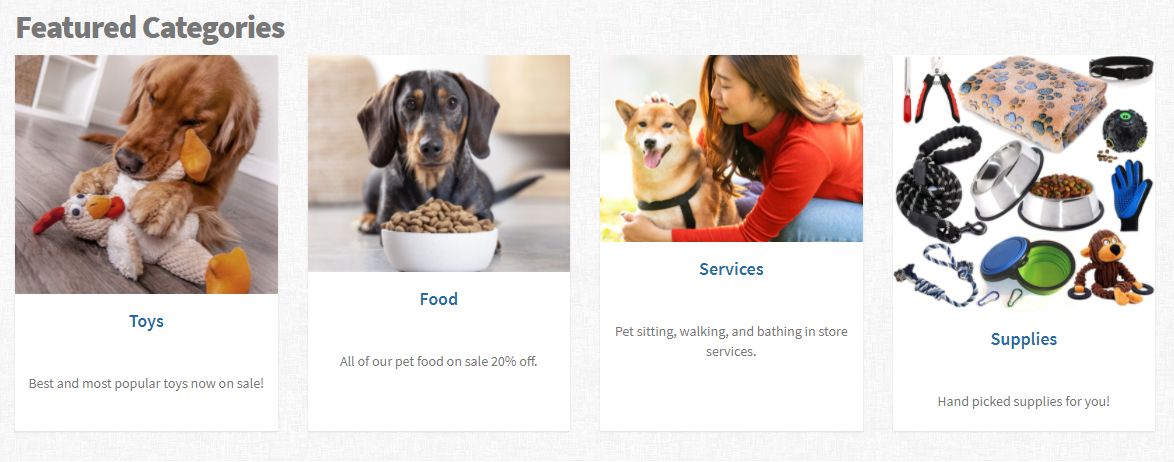
Turn OFF the editing mode to see the final result. In the example below, images and descriptions were added to each of the featured categories.